GLOBAL VIEW · END-TO-END PIPELINE
System flow
Client → JobPost → Campaign → Meta Ads → Performance
Needles connects companies with passive talent through Meta Ads campaigns. The system has 5 sequential stages mapped 1:1 to Airtable tables. Each stage has its own forms, automations and statuses. Most transitions are automatic; some require a consultant to act. The flow always ends with a campaign published in Meta Ads (paused) and KPIs syncing daily.
5
Airtable tables
11
Automations
13
Pipeline statuses
4
Web apps
RECORD-LEVEL FIELDS · TRAVEL WITH EACH CAMPAIGN
Information that travels through the pipeline
Client (linked, from Clients table) · Job Post (linked, source of truth for vacancy data) · Status (drives all automations) · Country & Budget (consultant-defined) · Review URLs (auto-generated for consultant + client) · Meta IDs (Campaign / Ad Set / Lead Form, set on publish) · Published Meta Snapshot (used to detect changes for live edits)
A
Consultants directory
Internal staff registry. No automations — just data. Every Needles consultant must exist here before being assigned to a client.
Add consultant to the system
A new Needles employee is added through the Consultant Form. Once saved, the consultant can be linked from any record in the Clients table.
B
Client onboarding
Clients fill the intake form. Once their website is captured, the system extracts their branding (colors, tone, display link) automatically. From here on, the client can have unlimited Job Posts.
Client intake → branding extraction
Client fills the Client Form. The system reads the website, extracts brand colors, tone, and the canonical careers URL, and saves them to the client record. The consultant assigned to the client is set manually.
C
Job Post intake & extraction
Client sends a vacancy document. The system parses it and builds a structured Job Post: title, description, requirements, USPs, hook, salary, etc. One Job Post = one campaign downstream.
Job Post received → vacancy parsed
Client uploads the vacancy via the Job Post Form with attachment (PDF / DOCX / image). The system reads the document and fills 14+ structured fields automatically (job title, location, salary, USPs, hook, conditions, etc.).
D
Campaign Pipeline — content, review, publish
The big one. 13 statuses, 9 automations, 2 review cycles, 1 publish step. Generates copies + visuals, runs them through consultant + client review, configures the lead form, and finally publishes to Meta. Detailed flow lives in the AIRTABLE tab.
Status-driven content generation & review
Statuses progress: Generate Copies → Generate Visuals → Review Consultant ↻ Changes Consultant → Review Client ↻ Changes Client → Configurate Campaing → Published → Paused / Active / Updating Live. The two ↻ steps can repeat any number of times until approval.
E
Ads performance — daily KPI sync
Once a campaign is live, KPIs are pulled from Meta Ads every morning into the Ads Performance table. One row per day per campaign. This is what consultants consult to report to clients.
Daily KPI ingestion
Every morning at 06:00, the system reads Meta Ads insights for the previous day and writes one row per campaign: spend, impressions, reach, frequency, link clicks, CTR, leads, CPM, CPC, lead conversion rate.
Airtable tables & automations
One section per table. Each documents its forms, fields, automations, and the SOP to operate it.
1 · Consultants
Internal staff registry. Manual entry only. No automations.
Consultant Form airtable.com/.../pagBSDYtwVo3CctQX/formFIELDS
Consultant record
| Field | Type | Notes |
|---|---|---|
| Name | Text | Required |
| Required, unique | ||
| Active | Checkbox | Inactive consultants stay in DB but aren't assignable |
| Clients | Linked (Clients) | Reverse link from Clients table |
SOP · Add a new consultant to the system
- Open the Consultant Form.
- Fill
Name,Email, markActive = true. - Submit. The consultant is now available to be linked from any client record.
- Open the Clients table and assign existing clients to this consultant if needed.
2 · Clients
Companies that hire Needles. One automation: branding extraction.
Client Form airtable.com/.../pagTqIxzdeuSr1tzw/formFIELDS
Client record
| Field | Type | Notes |
|---|---|---|
| Company Name | Text | Required |
| Contact Email | Required, used to send the client review email | |
| Website | URL | Triggers branding extraction |
| Branding | Long text | Auto-filled (colors, tone, style) |
| Display Link Meta | Text | Auto-filled (e.g. company.com/vacatures) — used in ads |
| Meta Page ID | Text | Required to publish ads — must be set manually |
| Logo | Attachment | Used in visuals |
| Consultant | Linked (Consultants) | Required |
Branding extraction
Triggers: when a client record has Website filled and Branding empty.
What it does: reads the website, downloads brand assets (logos, header images), and writes a brand summary (palette + tone + visual style) into the client record. Also derives the canonical careers URL.
Writes: Branding, Display Link Meta.
▶ See: How to onboard a new client
SOP · Onboard a new client
- Send the Client Form link to the client (or fill it on their behalf during onboarding).
- Verify
Websiteis filled — branding extraction kicks off automatically and populates Branding + Display Link Meta. - Manually set Meta Page ID (ask the client for their FB page ID — required to publish ads).
- Assign a Consultant.
- Send the Job Post Form link so the client can submit their first vacancy.
3 · Job Posts
One job vacancy per record. One automation: Job Post processing. Each Job Post drives one Campaign downstream.
Job Post Form airtable.com/.../pagiKujL1o4oUf2cV/formFIELDS · AUTO-FILLED FROM DOCUMENT
Job Post record
| Field | Type | Notes |
|---|---|---|
| Client | Linked (Clients) | Required, set on form submit |
| Document | Attachment | Required — triggers extraction |
| Job Title | Text | Auto |
| Location | Text | Auto |
| Job Description | Long text | Auto |
| Requirements | Long text | Auto |
| Salary / Work Hours / Contract Type | Mixed | Auto if present in document |
| Conditions | Long text | Auto |
| USPs | Long text | Auto — bullets, one per line |
| Short USPs | Long text | Auto — max 4 lines × 38 chars (used in visuals) |
| Hook | Text | Auto — direct question to candidate |
| Schedule / Experience Level / Culture | Mixed | Auto |
Job Post processing
Triggers: when a Job Post is created with a Document attached.
What it does: reads the document and extracts every relevant field into the record. Also generates 4 short USPs for visuals and a hook question for ads.
Writes: all 14 Job Post fields above.
▶ See: How to process a Job Post received by email
SOP · Process a Job Post received by email
- Open the Job Post Form (or open the Job Posts table directly).
- Link the
Client. - Attach the document to Document.
- Submit. Wait ~30 seconds — the automation fills all fields.
- Review the auto-extracted fields. Edit if anything is missing or off.
- The Job Post is now ready to be linked from a new Campaign Pipeline record.
4 · Campaign Pipeline
The heart of the system. Note the Airtable typo: the table is named Campaing Pipeline (with one "i"). 13 statuses, 9 automations, 2 review cycles.
STATUS-DRIVEN STATE MACHINE
All statuses at a glance
Status is the single field that orchestrates the pipeline. Never edit it manually unless you understand the downstream effect.
| # | Status | Who acts | What happens |
|---|---|---|---|
| 1 | Generate Copies | System | Generates 5 copies (1 short, 2 medium, 2 long) |
| 2 | Generate Visuals | System | Generates 6 images (3 visuals × 1:1 + 9:16) |
| 3 | Review Consultant | Consultant | Consultant reviews via Consultant Review App |
| 4 | Changes Consultant | System | Applies consultant feedback to copies/visuals |
| 5 | Review Client | Client | Email sent. Client reviews via Client Review App |
| 6 | Changes Client | System | Applies client feedback |
| 7 | Content Ready | Consultant | Consultant decides next step (skip or configure) |
| 8 | Configurate Campaing | System + Consultant | Generates lead form + sends email/Slack to consultant |
| 9 | Published | System | Creates campaign in Meta Ads |
| 10 | Paused / Active | Consultant | Mirrors status to Meta Ads |
| 11 | Updating Live | System | Diffs vs published snapshot, replaces only what changed |
| 12 | Error | System | Notifies consultant; resolve and reset |
URLS LIVE IN THE RECORD · WHERE TO FIND EACH ONE
Quick reference: which field stores which URL
| Action | Field with the URL | Who opens it |
|---|---|---|
| Consultant reviews copies + visuals | Consultant Review URL | Consultant |
| Client reviews copies + visuals | Client Review URL | Client |
| Configure Meta campaign (lead form, budget, targeting) AND apply changes to live campaign | Url Review Meta Campaing | Consultant |
| Edit one or more visuals manually | Visual Generator opens with ?campaign=<recordId> | Consultant |
Generate copies
Triggers: when a campaign is created (status starts here automatically).
What it does: reads the linked Job Post + reference examples, generates 5 copies — 1 short (40-75 words), 2 medium (80-140), 2 long (150-210).
Writes: Short Copy, Medium Copy 1, Medium Copy 2, Long Copy 1, Long Copy 2.
Sets status → Generate Visuals.
Generate visuals
Triggers: automatically after copies are generated.
What it does: picks 3 templates and renders 3 visuals (each one in 1:1 + 9:16). Saves the images and stores the editor state so a consultant can re-edit them later in the Visual Generator.
Writes: Visual 1, Visual 2, Visual 3, Consultant Review URL.
Sets status → Review Consultant.
Consultant review cycle
The consultant reviews 3 visuals + 5 copies in the Consultant Review App (URL in Consultant Review URL). They have two outcomes:
1. Approve everything. Submit with no comments → consultant manually changes status to Review Client (the email to the client goes out).
2. Request changes. Write feedback per item → status goes to Changes Consultant. The system applies the feedback, regenerates the review URL, and the cycle repeats. This step can repeat any number of times until the consultant approves.
Consultant approves?
Decision · request changes / approve / skip client
TRACK A · CHANGES
Request changes
Consultant fills feedback fields
Apply consultant feedback
Reads the consultant's review fields. If feedback is present, the system rewrites the affected copies/visuals. If empty, only a new review URL is generated. Clears the feedback fields.
Sets status → Review Consultant (cycle restarts).
TRACK B · APPROVE
Approve as-is
Consultant changes status manually
Send email to client
The system validates required fields, then Airtable sends the client an email with the Client Review URL as a button. Email template lives in reference/email-automation-setup.md.
Client review cycle
The client opens the email and clicks through to the Client Review App (URL in Client Review URL). They see the same 3 visuals + 5 copies the consultant approved. Two outcomes:
1. Approve everything. Submit with no comments → status goes to Content Ready. The consultant takes over.
2. Request changes. Write feedback per item → status goes to Changes Client. The system applies the feedback. Then the consultant decides: (a) review the new version internally and re-send to the client, or (b) skip the second client review and go straight to Content Ready if changes were minor. This step can repeat any number of times.
Client approves?
Decision · approve / request changes
TRACK A · CHANGES
Request changes
Client submits feedback per copy/visual
Apply client feedback
Same logic as consultant changes but on client-side fields. The consultant then decides whether to send back to the client or skip.
Sets status → Review Client (or Content Ready if consultant skips).
TRACK B · APPROVE
Client approves
Submits review with no comments
Awaiting campaign config
All content approved. Consultant manually changes status to Configurate Campaing when ready to set up the Meta campaign (budget, targeting, lead form).
Generate lead form & notify consultant to configure
On first entry to this status the system generates a filtervraag (filter question + pass/fail answers) for the Meta lead form, stores it in Lead Form Questions, and creates the configuration URL in Url Review Meta Campaing.
The consultant is then notified by email and Slack to open that URL and review the lead form, budget, country, and targeting.
If the consultant adds notes in Consultant Notes - Meta Form, the system applies those changes to the lead form JSON. The consultant can iterate on this step until satisfied.
Publish to Meta Ads
Triggers: consultant changes status to Published from the configuration page.
What it does: creates the campaign in Meta Ads — campaign, ad set with country + location targeting, lead form, 6 image uploads (3×1:1 + 3×9:16), 3 creatives (each combining images + a copy), 3 ads.
Writes: Meta Campaing ID, Meta Campaing URL, Meta Ad Set ID, Meta Lead Form ID, Campaign Name, Published Meta Snapshot.
Always ends in Paused. The campaign is never activated automatically — a consultant flips status to Active after final review.
Edit a live campaign — apply changes to Meta
For campaigns already published. The consultant edits copies, visuals, lead form, budget, location, or name. To push these to Meta, they open the Campaign Configuration App using the URL stored in Url Review Meta Campaing and click "Apply Changes to Meta".
The status becomes Updating Live. The system compares the current state against Published Meta Snapshot and replaces only what changed in Meta — faster and lower risk than a full re-publish.
Always ends in Paused. Consultant flips back to Active after a final visual check on Meta.
Mirror status to Meta Ads
When the consultant flips status between Active and Paused, the system mirrors that change to the live Meta campaign so the ads start or stop serving accordingly.
5 · Ads Performance
One row per day per campaign. Auto-populated by the daily KPI sync at 06:00.
FIELDS · AUTO-FILLED FROM META INSIGHTS
Ads Performance record
| Field | Type | Reported to client? |
|---|---|---|
| Date | Date | Yes |
| Meta Campaing ID | Lookup | — |
| Impressions / Reach / Frequency | Number | Yes |
| Link Clicks / Unique Link Clicks | Number | Link Clicks only |
| CTR | Percent | Yes |
| Leads / Leads Conversion Rate | Number / Percent | Yes |
| Spend / CPM / CPC / CPL | Currency / Number | Internal only |
Daily KPI sync
Triggers: Airtable scheduled automation, every day at 06:00.
What it does: for every active campaign, reads Meta insights for the previous day. Extracts impressions, reach, clicks, leads, CTR, CPM, CPC, etc. Calculates Lead Conversion Rate.
Writes: a new row in Ads Performance per campaign per day.
▶ See: How to read campaign performance
Web apps
Four custom apps complement Airtable. Pick one to read its details.
Consultant Review App
Where the consultant reviews 3 visuals + 5 copies and either approves or requests changes.
URL · FIELD · TRIGGER
How the consultant accesses it
URL pattern: https://needles-review.pages.dev/consultant/review?token=<token>
Where to find it: field Consultant Review URL on the campaign record.
Generated when: visuals finish rendering (status becomes Review Consultant). Regenerated after every Changes Consultant cycle.
Review campaign content
Approve everything or write feedback per item.
WHAT IT WRITES TO AIRTABLE
Form behaviour
| UI input | Saves to |
|---|---|
| Visual 1/2/3 feedback | Review Visual 1/2/3 Consultant |
| Copy feedback | Review Copy 1/2/3 Consultant |
| Submit (any field filled) | Status → Changes Consultant |
| Submit (all empty) | Consultant manually moves status → Review Client |
Client Review App
The client-facing review of copies + visuals. Same UI as consultant version, different fields.
URL · FIELD · TRIGGER
How the URL gets to the client
URL pattern: https://needles-review.pages.dev/review/<token>
Where to find it: field Client Review URL on the campaign record.
How it's sent: when the consultant changes status to Review Client, the system sends an automated email to the client's Contact Email with the URL as a button. If the email gets lost, the consultant can copy the URL from the field and resend manually.
Token rotation: a new token + URL are generated after every Changes Client cycle (old links stop working).
Beoordeel je vacature-campagne
Hieronder zie je 3 visuals en 3 copies. Geef per item feedback of klik op "Goedkeuren".
WHAT IT WRITES TO AIRTABLE
Form behaviour
| UI input | Saves to |
|---|---|
| Visual feedback | Review Visual 1/2/3 Client |
| Copy feedback | Review Copy 1/2/3 Client |
| Submit (any field filled) | Status → Changes Client |
| Submit (all empty) | Status → Content Ready |
Campaign Configuration App
Where the consultant reviews and edits the Meta campaign — before publishing AND for live edits.
URL · FIELD · TRIGGER
How the consultant accesses it
Where to find the URL: field Url Review Meta Campaing on the campaign record.
Generated when: status moves to Configurate Campaing (after client approves the content).
Notification: the consultant receives an email + Slack message when the URL is ready.
Same URL is reused for live edits: after publishing, opening this URL again lets the consultant push changes to the live Meta campaign with one button.
Configure Meta campaign
Lead form · Budget · Country · Targeting · Final preview
Filtervraag + pass/fail answers (auto-generated, editable)
3 ads · Country · Budget · Display Link
▶ Apply Changes to Meta
TWO USES OF THIS APP
Pre-publish vs. live edit
| When | What the consultant does | Result |
|---|---|---|
Status = Configurate Campaing |
Reviews lead form, budget, country, targeting. Adds notes in Consultant Notes - Meta Form if changes needed (system applies them). When ready, clicks Publish. | Status → Published. System creates the campaign in Meta (paused). |
Status = Paused / Active (campaign already published) |
Edits any of: copies, visuals, lead form, budget, location, name. Clicks Apply Changes to Meta. | Status → Updating Live. System pushes only the diff to Meta. Returns to Paused. |
Visual Generator
The editor that produces the 6 ad images per campaign. Has two access modes — they behave very differently.
Open Visual Generator needles-visual-editor.pages.devACCESS MODE 1 · AUTOMATIC (THROUGH THE CAMPAIGN)
Auto: triggered by the pipeline
When a campaign reaches status Generate Visuals, the system runs the Visual Generator headlessly. It picks 3 templates deterministically (so re-runs are consistent), renders each visual as 1:1 + 9:16, saves all 6 images, and stores the editor state so the consultant can re-edit later.
The consultant does nothing in this mode. Visuals just appear in Visual 1, Visual 2, Visual 3 a few minutes after status changes.
ACCESS MODE 2 · MANUAL (DIRECT ACCESS)
Manual: consultant opens the editor in browser
The editor can be opened in two ways depending on whether you already know which campaign you want to work on:
1. Open with no campaign (https://needles-visual-editor.pages.dev/) — the editor lands on a campaign picker. The consultant sees a searchable list of all campaigns (filterable by status: Review Consultant, Paused, Active, etc.) and selects the one to work on. Recommended way when reviewing multiple campaigns.
2. Open with a campaign already selected (?campaign=<recordId>) — skips the picker and loads that campaign directly. Use when jumping in from an Airtable record link or a Slack/email mention.
When to use the editor: when the auto-rendered visuals need adjustment — different template, different photo, custom USPs, brand colors override, etc.
What the consultant can change: template, subject photo, background, USPs, hook, logo, brand colors. Both ratios (1:1 + 9:16) preview live.
What happens on save: new images are saved, the Visual 1/2/3 fields update. If the campaign is already published, the consultant must then open the Campaign Configuration App and click Apply Changes to Meta to push the new visual live.
Visual Editor
Job: Servicemonteur · Amsterdam · €3.200 - €3.800
CONTROLS
· Template selector
· Subject photo upload
· Background photo
· USPs editor
· Hook editor
· Logo upload
· Brand colors
· Render & save
Roadmap
Funciones desplegadas, en desarrollo y planificadas para el Visual Generator.
✅ Ya desplegado
YA DESPLEGADO · ABRIL 2026
Tamaño de fuente del título editable por formato
Slider Size en el panel del elemento Title que escala el font-size base del template, independiente por formato (1:1 vs 9:16). El valor se persiste en el snapshot de la campaña y se respeta en la rasterización del PNG.
🔧 Funciones a desarrollar
Las cuatro capacidades clave que convierten al editor en una herramienta real de producción para el equipo. Referencia general: catálogo público de Canva (canva.com/elements + panel Position).
1 · CATÁLOGO COMPLETO DE ELEMENTOS COMO CANVA
Inserción libre de cualquier tipo de elemento creable en Canva
Hoy los elementos de un template son fijos: el consultor solo puede cambiar texto, foto y colores. Replicamos la biblioteca completa de elementos de Canva (canva.com/elements) para que pueda añadir cualquier cosa al canvas en cualquier momento. La regla es: si se puede crear en Canva, se puede crear aquí.
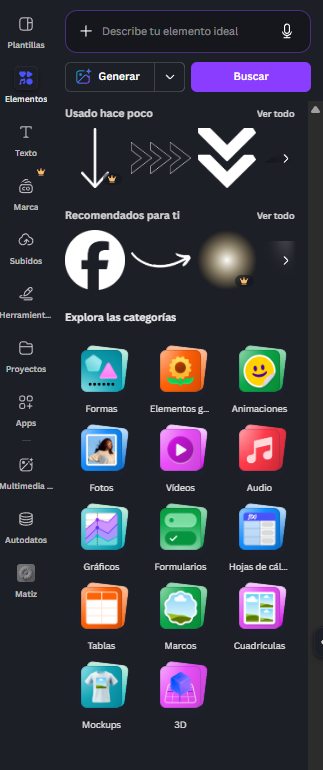
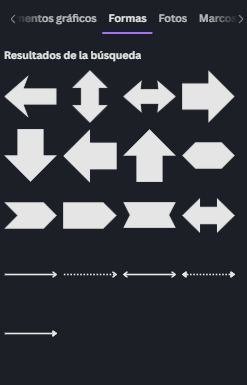
- Texto: títulos, subtítulos, cuerpos y etiquetas. Tipografía, tamaño, color, espaciado de letra/línea, alineamiento, negrita/cursiva/subrayado, mayúsculas, sombras y efectos básicos.
- Figuras geométricas: rectángulo (con esquinas redondeadas), círculo, triángulo, polígono, estrella, flecha, línea.
- Figuras orgánicas estilo Canva: blobs, ondas, ribbons, banderolas, tickets, badges con forma. Se integra una librería pública (repositorio SVG en GitHub) en lugar de dibujar cada figura a mano.
- Frames: contenedores que recortan una foto a una forma concreta (círculo, polaroid, móvil, etc.). El consultor arrastra una foto al frame y se ajusta sola.
- Iconos vectoriales: librería integrada (Lucide / Heroicons / Phosphor o un set orientado a recruitment). Buscables por palabra clave.
- Stickers y gráficos decorativos: ilustraciones planas para reforzar el mensaje (tick, estrella, flecha apuntando, pegatinas de "Nieuw!", etc.).
- Líneas, flechas y conectores: rectas, curvas, con grosor y estilo de remate (punta, punto, cuadrado).
- Fondos: color sólido, gradiente lineal/radial, patrones repetibles. Aplicable al canvas completo o a una capa.
- Botón CTA: configurable (texto, color, forma, esquinas) aunque el template no lo traiga por defecto.
- Logo e imágenes sueltas: subir, reposicionar, reescalar, recortar, quitar fondo (background removal ya disponible en el sistema).
- Fase futura: charts simples (barras / donut para datos del puesto) y QR codes apuntando a la landing del job.
2 · GESTIÓN DE CAPAS
Reordenar, agrupar y exportar capas (equivalente al panel Position de Canva)
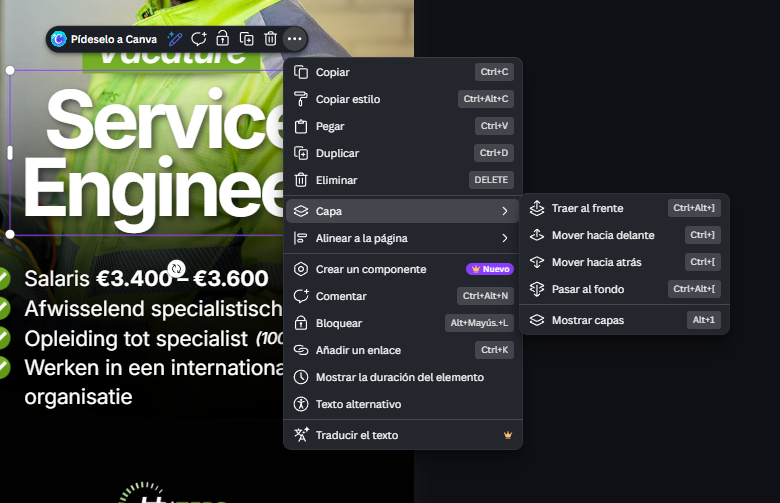
Una vez se permite añadir elementos sueltos, el orden de pintado y la organización por capas se vuelven críticos. Replicamos el patrón del panel Position de Canva: cada elemento del canvas es una capa visible y manipulable desde un panel lateral, con todas las operaciones estándar.
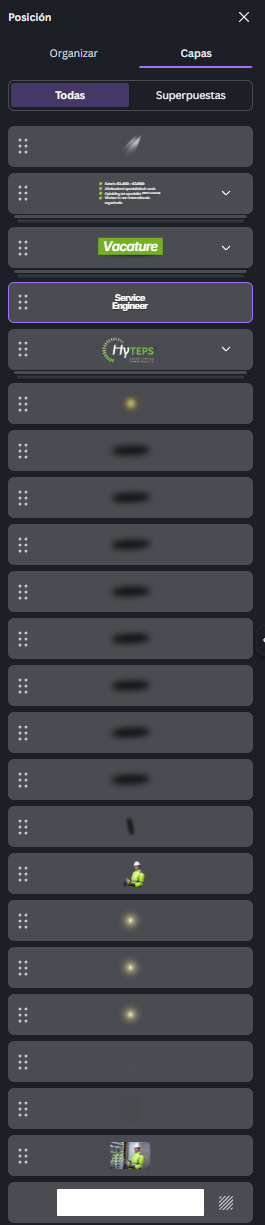
- Panel lateral de capas con la lista completa del visual actual, en orden de pintado (top de la lista = encima en el render).
- Drag & drop para reordenar las capas arrastrándolas dentro del panel.
- Botones rápidos: enviar al frente, enviar al fondo, subir 1, bajar 1 (mismos de Canva).
- Toggles por capa: visible / oculto, bloqueado (no se puede mover sin querer).
- Modificación inline: doble clic sobre la capa para renombrarla, editarla o duplicarla.
- Group / Ungroup: agrupar varias capas y tratarlas como un solo bloque para mover, redimensionar o duplicar a la vez.
- Multi-selección: shift+click sobre varias capas o selección por rectángulo de marquesina sobre el canvas.
- Exportación correcta: el render final (PNG 1:1 + PNG 9:16) respeta el orden y la visibilidad de capas exactamente igual que en el preview, sin desalineamientos ni capas perdidas.
3 · ALINEAMIENTO, CENTRADO Y REDIMENSIONADO
Bounding box, smart guides y toolbar contextual estilo Canva
Cuando se trabaja con elementos sueltos en un canvas, el feedback visual al colocar y redimensionar es crítico. Replicamos exactamente el patrón de Canva: bounding box con tiradores al seleccionar un elemento, toolbar contextual flotante (editar, regenerar, bloquear, duplicar, eliminar, más) y smart guides al arrastrar para alinear con bordes/centros del canvas o de otros elementos. Hace falta que el consultor pueda hacer un elemento más grande, más estirado, más pequeño, con más o menos espacio entre otros, y siempre con feedback inmediato y preciso.


- Bounding box al seleccionar: tiradores en las cuatro esquinas y en el centro de cada lado (8 handles) para mover y redimensionar arrastrando.
- Toolbar contextual flotante sobre el elemento seleccionado: editar contenido, regenerar/sustituir, bloquear, duplicar, eliminar, más opciones — exactamente como Canva.
- Coordenadas y tamaño en píxeles visibles en directo (X, Y, W, H) para precisión absoluta cuando hace falta.
- Smart guides: líneas de color cuando un borde, el centro o el midpoint del elemento coincide con otro elemento del canvas.
- Snap al canvas: bordes, centros y mitades de ancho/alto.
- Padding visual entre elementos: cota en píxeles que aparece al arrastrar un elemento cerca de otro (estilo Figma/Canva), para repartir espacio uniformemente sin medir a ojo.
- Botones de alineamiento: izquierda, derecha, arriba, abajo, centro horizontal/vertical, distribuir, espaciar uniformemente entre varios elementos.
- Atajos de teclado: flechas (1px), Shift+flechas (10px), Ctrl+D (duplicar), Delete (borrar), Ctrl+G (agrupar).
- Redimensionado proporcional: Shift al arrastrar mantiene aspect ratio; Alt redimensiona desde el centro.
- Rotación con handle exterior (ángulo libre o ajustado a 15° con Shift).
- Doble clic sobre un elemento para entrar directamente en modo edición (texto editable, foto recortable, etc.).
- Bounding box conjunto al multi-seleccionar varios elementos: se mueven y redimensionan a la vez como un solo bloque.
4 · ⭐ CONFIGURACIÓN Y TEMPLATES POR CLIENTE
Configurar, guardar y crear templates por cliente
Cada cliente tiene su propio look. La app debe permitir tres cosas: (a) ajustar un template existente para un cliente y guardar la configuración para futuras vacantes, (b) escoger qué templates concretos puede usar cada cliente, y (c) crear nuevos templates desde cero dentro de la propia app. Todo esto se sostiene sobre nuevas tablas en Airtable que relacionan templates con clientes.
- A. Configuración por cliente (autofill) — petición explícita del cliente. Cuando el consultor edita por primera vez los visuales de un cliente nuevo, ajusta colores, fuentes, posiciones, USPs, CTA y elige sus templates. Ese trabajo se guarda a nivel cliente y las siguientes vacantes del mismo cliente autorrellenan esas decisiones. Filosofía: la primera vacante sube el visual de un 6 a un 8 sobre 10 manualmente; a partir de ahí cada vacante nueva nace ya en un 8 sin que el consultor repita nada.
- B. Selección de templates por cliente — cada cliente tiene su set de templates aprobados; la auto-generación solo elige entre esos. Asignación desde la propia app (panel "Templates de este cliente") o desde Airtable (campo multi-link Client → Templates). Templates exclusivos (look custom de un solo cliente) vs compartidos (disponibles para todos). Top-3 favoritos para que la auto-generación los priorice.
- C. Crear nuevos templates desde cero — editor en blanco que usa todas las features anteriores (#1, #2, #3). El consultor diseña el template completo, coloca elementos y define cuáles son dinámicos (job title, USPs, hook, foto, logo). Al guardar elige entre: (1) configuración específica de un cliente concreto o (2) nuevo template global del sistema disponible para todos los clientes.
- D. Modelo de datos — nueva tabla Templates en Airtable (id, nombre, JSON spec, scope cliente/global, owner si exclusivo); tabla pivote Client_Templates para la relación M:N (con orden de preferencia y flag de favorito); nuevo campo Visual Defaults (JSON) en la tabla Client. La task
generate-visualslee Visual Defaults al arrancar y preconfigura el editor antes de generar.
📅 Cronograma sugerido
PIPELINE DE ENTREGAS
Orden recomendado de entregas
Todas las features se construyen sobre la misma base (motor JSON + renderer + schema). El orden recomendado prioriza la base técnica y la UX del consultor — primero lo que reduce trabajo repetitivo (autofill por cliente), después las capacidades creativas (elementos, capas, alineamiento), y por último la creación libre de templates desde cero.
Nota: el proceso completo durará aproximadamente 21 días (~3 semanas).
| Fase | Funciones principales | Entregable |
|---|---|---|
| Fase 1 | Motor JSON + renderer extendido · Configuración por cliente / autofill (#4A) · Selección de templates por cliente (#4B) · Modelo de datos Templates y Client_Templates (#4D) | Base técnica + autofill |
| Fase 2 | Gestión de capas (#2) · Alineamiento, centrado y redimensionado (#3) · Toolbar contextual y smart guides estilo Canva | Manipulación profesional |
| Fase 3 | Catálogo completo de elementos (#1) · Librería de figuras/iconos (repo SVG) · Crear nuevos templates desde cero dentro de la app (#4C) | Independencia total de Canva |
Stack
High-level overview of the tools that power Needles. Useful to know which platform owns which part of the system.
Database · forms · automations
Airtable
Source of truth for all 5 tables. Hosts the Client / Job Post / Consultant forms. Native automations orchestrate the pipeline.
Cloud automation runtime
Trigger.dev
Runs all 11 long-running tasks (data extraction, generation, publishing, KPI sync) with retries and logs.
Language model (AI)
Claude API
Powers branding extraction, vacancy parsing, copy generation, lead-form filtervraag and feedback application.
Web hosting (review & visual apps)
Cloudflare Pages
Hosts the four web apps (Consultant Review, Client Review, Campaign Configuration, Visual Generator).
Image storage / CDN
Cloudinary
All visuals (1:1 + 9:16) are uploaded here. Stable URLs used in Airtable and Meta Ads creatives.
Headless rendering
Puppeteer
Drives the Visual Generator in automatic mode to render and capture the 6 images per campaign.
Ads platform (destination)
Meta Ads (Facebook + Instagram)
Where every campaign is published. Lead Forms collect candidate data. Insights feed the Ads Performance table.
Internal notifications
Email + Slack
Used to notify consultants when human action is required (e.g. Meta campaign config ready to review).
How-To · SOP playbook
Step-by-step recipes for every recurring operation. Cards in the AIRTABLE tab link directly to the relevant SOP below.
01
Add a new consultant
- Open the Consultant Form.
- Fill
Name,Email, markActive. - Submit. Consultant is now linkable from any client.
02
Onboard a new client
- Send the Client Form link.
- Verify
Websiteis set — branding extraction runs automatically. - Manually set
Meta Page ID(ask the client). - Assign a
Consultant. - Send the Job Post Form link to start the first vacancy.
03
Process a Job Post received by email
- Open the Job Post Form (or Job Posts table directly).
- Link the
Client. - Attach the document to
Document. - Save. Wait ~30s — automation fills all fields.
- Review extracted fields and edit if needed.
04
Create a campaign for a Job Post
- Open the Campaign Pipeline table.
- Create a new record. Link the
Job Post. - Set
Country+Budget. - Status starts at
Generate Copiesautomatically. - The chain runs to
Review Consultant.
05
Consultant review (cycle)
- Open the campaign record. Click the URL in
Consultant Review URL. - Review 3 visuals + 5 copies in the Consultant Review App.
- Approve: leave all feedback empty → submit. Then change status to
Review Client. - Request changes: write feedback per item → submit. Status goes to
Changes Consultant. - Wait until status returns to
Review Consultant— re-review. Repeat as needed.
06
Send to client & client review (cycle)
- From
Review Consultant, change status toReview Client. - The system sends an email to the client with the Client Review URL.
- If the client replies "no changes" → status moves to
Content Ready. - If the client requests changes → status goes to
Changes Client; system applies feedback. - Then the consultant decides: (a) resend to client (status →
Review Client) or (b) skip the next client review and go straight toContent Ready.
07
Configure & publish to Meta
- From
Content Ready, change status toConfigurate Campaing. - System generates the lead form filtervraag and the configuration URL.
- Consultant receives email + Slack notification.
- Open the URL in
Url Review Meta Campaing. Review lead form, budget, country, targeting. - Add notes in
Consultant Notes - Meta Formif changes needed (system applies them). - Click Publish. Campaign is created in Meta (paused).
- Flip status to
Activeafter final review on Meta.
08
Edit a live campaign
- Update copies, visuals, lead form, budget, location, or name in Airtable / Visual Generator.
- Open the URL in
Url Review Meta Campaing. - Click Apply Changes to Meta.
- Status becomes
Updating Live. System pushes only the diff to Meta. - Always ends in
Paused. Flip toActivewhen ready.
09
Regenerate a single visual manually
- Open
https://needles-visual-editor.pages.dev/?campaign=<recordId>. - The editor auto-loads the campaign data + existing visuals.
- Pick the visual to regenerate (1, 2, or 3).
- Adjust template, photos, USPs, colors. Both ratios preview live.
- Click Render & save. The new visuals are saved and Airtable updates automatically.
- If the campaign is live, push the change with Apply Changes to Meta in the Configuration App.
10
Read campaign performance
- Open the Ads Performance table.
- Filter by
Meta Campaing ID(or use a per-campaign view). - Daily rows are auto-populated at 06:00.
- For client reports: Impressions, Reach, CTR, Leads, Conversion Rate.
- For internal review: also Spend, CPM, CPC, Cost per Lead.
11
Handle an automation error
- Status moves to
Errorwhen any task fails. - Read the error message in the campaign record (or check the automation log).
- Identify the cause — missing field, invalid input, expired token, etc.
- Fix the underlying data.
- Reset the status to the previous step. The automation re-runs.
Frequently asked
FAQ
Things people ask the most
Why does the table say "Campaing" instead of "Campaign"? Typo in the original Airtable schema. Renaming would break every automation — we leave it.
Why are campaigns always paused after publishing? Safety net. A consultant must verify the campaign on Meta before activating it.
The client said they didn't get the review email — what now? Open the campaign record, copy the URL from Client Review URL, and send it manually. The token stays valid until the next "Changes" cycle.
Can I edit a copy directly in Airtable? Yes, but only when status is Review Consultant or Content Ready. Editing during automation runs can cause race conditions.
Where do I edit the lead form filtervraag? Open the URL in Url Review Meta Campaing when status is Configurate Campaing. Or write feedback in Consultant Notes - Meta Form and the system will apply it automatically.
How do I push a small visual change to a live campaign? Edit the visual (Visual Generator), then open the URL in Url Review Meta Campaing and click Apply Changes to Meta.